


Stay updated

What's new?

Everything you need to know, all in one place. Get the latest announcements and the first look at our most recent features and releases.

Summer 2026 Credit Journeys, ESG & Platform Enhancements

Checkmyfile

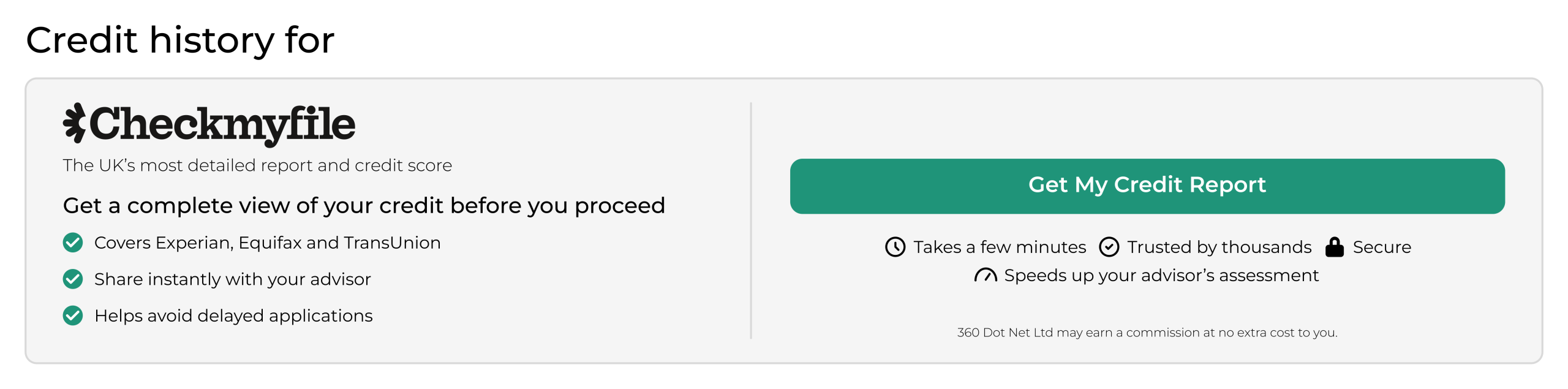
Clients now benefit from a clearer, more engaging Checkmyfile experience within the FactFind, including improved branding and a more prominent call‑to‑action.

Advisers also gain a new contextual prompt within the Credit History section, offering expandable guidance and editable email content to help request and explain credit reports more effectively.
Checkmyfile New Credit Report Journey

Responsible & Sustainable Investing

A new section within Adviser FactFinds allows advisers to formally capture Environmental, Social and Governance (ESG) preferences, supporting rationale and client‑specific requirements. This enhancement provides a structured way to record responsible investing needs and supports suitability discussions and reporting.

Address Lookup

Address entry has been modernised across 360 Office, Adviser, User Settings and Trustee Maintenance. Autocomplete search now appears instantly as you type, reducing manual keying, improving data quality and delivering a more consistent experience across the platform.

eIDV & AML Monitoring

360 now passes a unique client identifier for each client, ensuring every individual is recognised within the system and eligible for ongoing monitoring. This supports clearer oversight, more consistent client tracking and improved alignment with monitoring requirements.

FactFind Updates

Key actions and validation messages now remain visible while scrolling, making it easier to navigate and complete larger FactFinds. This enhancement supports faster completion, clearer issue resolution and a smoother adviser workflow.

Frequently asked questions

Are these updates automatic?

Most enhancements will be available automatically following the release. However, the new Responsible & Sustainable Investing section is disabled by default and must be enabled within Advisor FactFind configuration before it becomes available to advisers.

Do these updates impact my FactFind configuration?

No. Existing FactFind configurations will continue to operate as they do today. The Responsible & Sustainable Investing section has been designed as an optional enhancement, allowing firms to adopt it when they are ready.

Has the FactFind process changed for clients?

Yes. Clients will see an enhanced Checkmyfile experience within the Client FactFind, designed to make it easier to understand the benefits of obtaining a credit report and accessing the service from any device.

Is Checkmyfile now mandatory?

No. Checkmyfile remains entirely optional for both advisers and clients. The new functionality is designed to encourage engagement and improve the quality of information available during the advice process, without interrupting FactFind completion.

What are the benefits of the ESG section?

The enhancement helps advisers capture and evidence client preferences in a clear and consistent way. It supports suitability discussions, improves record keeping, and makes it easier to include this information within recommendation reports.

Has the address lookup changed?

Yes. Address lookup has been streamlined to make address entry faster and more intuitive. Users can now begin searching directly from the address field while still retaining the ability to manually enter or amend address details if required.

Will these changes impact existing cases?

No. These enhancements are designed to improve future adviser and client journeys. Existing cases and historical records remain unaffected. The GBG monitoring improvement, for example, only applies to new activity after the release.

Checkmyfile

• We have a new credit reporting provider Checkmyfile.
• This ensures clients have access to Experian, Equifax and TransUnion in one place.
• In the online FactFind clients can now download their own credit file and send it to their adviser.


How to:
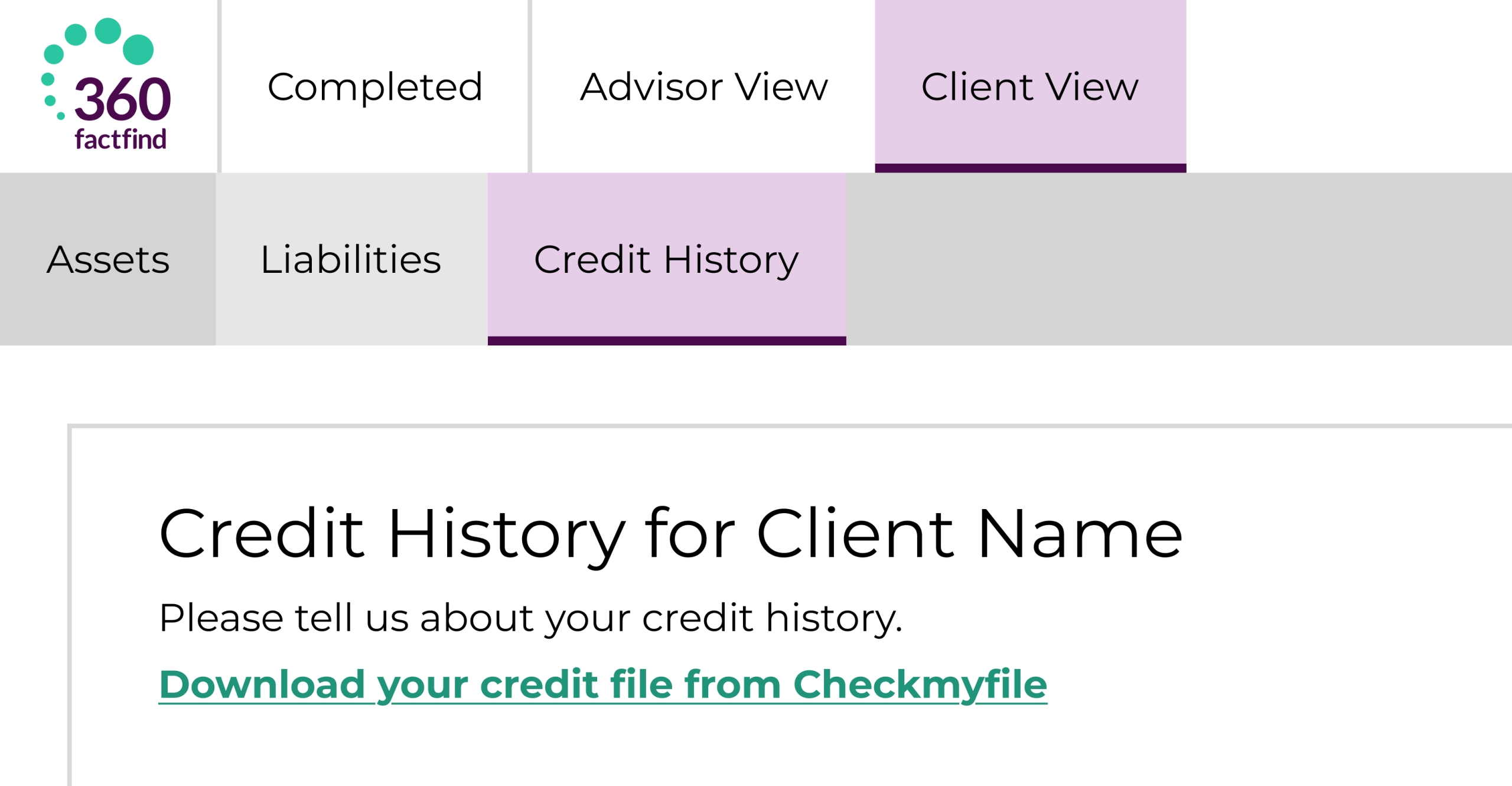
Within the ‘Client View’ of the FactFind, click on the ‘Credit History’ page where you will be able to see a green link ‘Download your credit file from Checkmyfile’. If you click the the link you will be redirected to Checkmyfile.
Checkmyfile Client View Graphic
This update ensures clients can access a more reliable view of their credit position, drawing data from Experian, Equifax and TransUnion in one place.

This gives advisers a clearer, more detailed picture of a client’s financial history, supporting more accurate assessments and better‑informed advice.

Item counts added to grouped reports

Reports produced in grid view now display item counts when grouped, making it easier to see how many items fall within each group.

Duplication alerts in Campaign Manager

Campaign Manager alerts advisers of duplicate email addresses or mobile numbers within email and SMS campaigns, helping advisers maintain cleaner, more accurate distribution lists.

Workflow configuration locking

Workflow configuration includes a lock preventing multiple users from editing at the same time. If another user has the page open, the message will say the page is locked by another user and it displays their name and shows the date and time they have been on the page since. This prevents users from updating or trying to create two workflow configurations at the same time which causes issues.

FactFind Header

Customised branding

Add your firm’s logo via the brand maintenance section in 360 Office to display your branding within the FactFind.

Submission validation

The ‘Create New Case’ button now stays locked until all mandatory data is entered, ensuring 100% complete submissions.

Auto-population

Required names now auto-populate to save you time and eliminate blank fields.

Streamlined navigation

Collapsible menus, updated search controls, and 'smart-scroll' which returns you to the top of the page after deletions.

Improved Clarity

New hover-to-reveal text for long names and updated button colours for better clarity.

Modernised layout

We've streamlined margins and updated fields, dropdowns, buttons, date pickers for better page flow.

Enhanced clarity

Fields with errors are highlighted more clearly for quicker resolution, supported by updated validation controls.

Refreshed aesthetics

Section and subsection headers, as well as sticky notes, have been updated for a cleaner appearance, improving your focus.

Updated navigation

FactFind navigation headers have been revamped: 'Sale Data' is now 'Recommendation', and a fourth header, 'FactFind Tools', has been added.

Important Update

The 'Submit FactFind' button has moved!

It is now displayed on the FactFind header at the top of the page, alongside other common actions like ‘Convert FactFind’ and ‘Download PDF’.

Submit FactFind Button

Resources

360 Lifecycle: The NEW modern interface walkthrough – click on the ‘V’ logo to watch this video in full screen

360 Lifecycle: Configurable client FactFind update – click on the ‘V’ logo to watch this video in full screen

Q2 2026 Update Checkmyfile & 360 Office

Checkmyfile

• We have a new credit reporting provider Checkmyfile.
• This ensures clients have access to Experian, Equifax and TransUnion in one place.
• In the online FactFind clients can now download their own credit file and send it to their adviser.


How to:
Within the ‘Client View’ of the FactFind, click on the ‘Credit History’ page where you will be able to see a green link ‘Download your credit file from Checkmyfile’. If you click the the link you will be redirected to Checkmyfile.
Checkmyfile Client View Graphic
This update ensures clients can access a more reliable view of their credit position, drawing data from Experian, Equifax and TransUnion in one place.

This gives advisers a clearer, more detailed picture of a client’s financial history, supporting more accurate assessments and better‑informed advice.

Item counts added to grouped reports

Reports produced in grid view now display item counts when grouped, making it easier to see how many items fall within each group.

Duplication alerts in Campaign Manager

Campaign Manager alerts advisers of duplicate email addresses or mobile numbers within email and SMS campaigns, helping advisers maintain cleaner, more accurate distribution lists.

Workflow configuration locking

Workflow configuration includes a lock preventing multiple users from editing at the same time. If another user has the page open, the message will say the page is locked by another user and it displays their name and shows the date and time they have been on the page since. This prevents users from updating or trying to create two workflow configurations at the same time which causes issues.

FactFind Header

Customised branding

Add your firm’s logo via the brand maintenance section in 360 Office to display your branding within the FactFind.

Submission validation

The ‘Create New Case’ button now stays locked until all mandatory data is entered, ensuring 100% complete submissions.

Auto-population

Required names now auto-populate to save you time and eliminate blank fields.

Streamlined navigation

Collapsible menus, updated search controls, and 'smart-scroll' which returns you to the top of the page after deletions.

Improved Clarity

New hover-to-reveal text for long names and updated button colours for better clarity.

Modernised layout

We've streamlined margins and updated fields, dropdowns, buttons, date pickers for better page flow.

Enhanced clarity

Fields with errors are highlighted more clearly for quicker resolution, supported by updated validation controls.

Refreshed aesthetics

Section and subsection headers, as well as sticky notes, have been updated for a cleaner appearance, improving your focus.

Updated navigation

FactFind navigation headers have been revamped: 'Sale Data' is now 'Recommendation', and a fourth header, 'FactFind Tools', has been added.

Important Update

The 'Submit FactFind' button has moved!

It is now displayed on the FactFind header at the top of the page, alongside other common actions like ‘Convert FactFind’ and ‘Download PDF’.

Submit FactFind Button

Resources

360 Lifecycle: The NEW modern interface walkthrough – click on the ‘V’ logo to watch this video in full screen

360 Lifecycle: Configurable client FactFind update – click on the ‘V’ logo to watch this video in full screen

Updating 360 Lifecycle applications

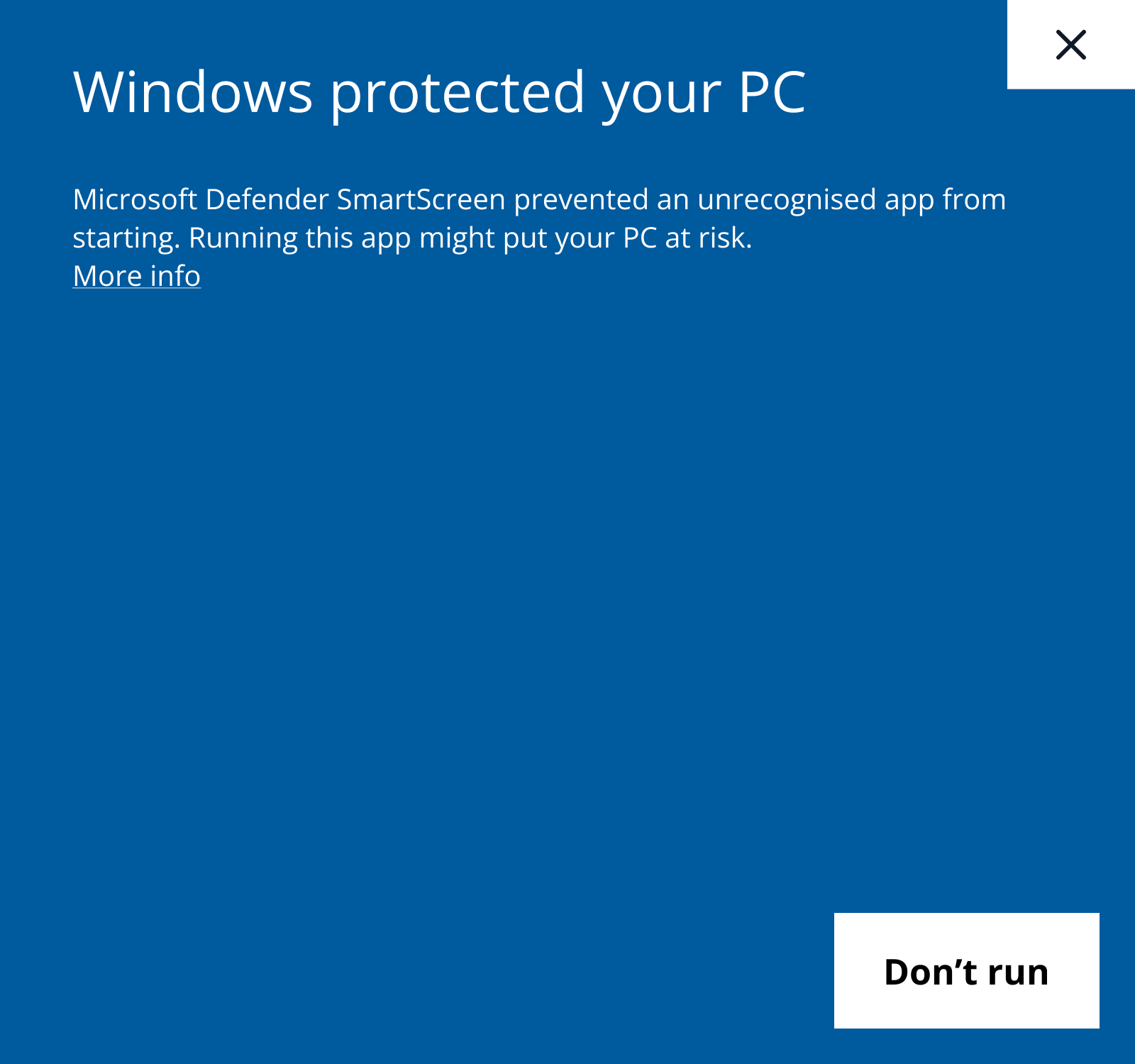
Windows protected your PC 1

1

When there is an update if you open a 360 Lifecycle application, your PC will try and prevent the update. Once ​you see the screen above, simply click 'More info' where you will be presented with screen 2.

Windows protected your PC 1

2

When the screen above is displayed click 'Run anyway'. This allows the update to take place and then you can continue to use 360 Lifecycle. If you do not have 'Run anyway' you will need to contact your local IT team.

Our Platform

360 Lifecycle features

360 FactFind Logo

A full end to end client facing FactFind solution for advisers.

360 Advisor Logo

Manage clients, appointments and create new opportunities.

360 Office Logo

Real time reporting, marketing capabilities and a workflow system.

360 Client Portal Logo

Engage and update your clients efficiently and access files securely.

360 Accounts Logo

Easily administer commissions and organise payments.